
Font optimization refers to rendering text efficiently on websites. It’s like tuning a car engine, which has many ways to improve performance. For example, selecting appropriate fonts, using up-to-date file formats, hosting fonts on private servers, improving CSS for font faces, and controlling font display settings all contribute to optimization.
Why should this matter?
When your fonts are optimized:
Overall performance is boosted.
Optimizing font loading speeds comes at the risk of making sacrifices. It’s comparable to electing to choose an eye-catching sporty car that takes time to get started, or a plain-looking car that fires up instantly. There’s the risk of sacrificing distinctive branding because unique fonts can be substituted for simpler ones.

Before getting into font performance optimization, let’s understand the basic difference between web-safe fonts and web fonts.
While both are digital fonts, they work differently:
Web-safe fonts come pre-installed with most operating systems. Think of them as the fonts that are already on your computer when you buy it. Since browsers don’t need to download these fonts, your website loads faster and performs better overall.
A special group of web-safe fonts is called system fonts. These are the fonts your computer uses for things like menu items and button text. Using these fonts on your website can make it feel more familiar to users, like a natural extension of their operating system.
Web-safe fonts can look too common since everyone uses them. That’s why many websites choose custom web fonts instead, which help create a more unique and distinctive appearance.
Web fonts are special fonts that most people don’t have on their computers. When someone visits your website using these fonts, their browser needs to download them first.
You can get these fonts from two places:
Since web fonts need to be downloaded, they make your website a bit slower to load compared to web-safe fonts. But don’t worry, there are several ways to make them load faster (we’ll cover these techniques later).
One important thing to remember: while web fonts can make your website look unique and professional, choosing the right fonts requires some design knowledge. If you’re not confident about your design skills, it might be better to stick with web-safe fonts rather than picking web fonts that don’t work well together.
If you want the fastest website possible, web-safe fonts are your best choice.
If you don’t tell your website which font to use in your CSS, the browser will simply use whatever font the user has set as their default.
For example, if you use Google Chrome, you can choose the default font by:

CSS lets you use five basic font types (called “generic font names”) in your website’s design:
To use one of these, you can write simple CSS like this:
					body {
    font-family: serif;
}
Here’s the interesting part: when you use these basic font types, different computers will show different actual fonts.
For example:
Even different browsers on the same computer might show different fonts
Sometimes, two different font types might even show the same font. For instance, on Windows 10 using Firefox, both sans-serif and fantasy might show up as Arial.
Want to see how these fonts look on your computer? You can check out this demo page.

So the bottom line is, when you use basic font types in your CSS, your website will look similar for everyone, but not exactly the same. Each user might see slightly different fonts depending on their device and browser, but the overall style will be consistent.
A font backup plan (or “font stack”) is a list of fonts your website can use. If the first font isn’t available, it tries the next one, and so on. Here’s how to write it in CSS:
					div {
    font-family: Arial, Verdana, sans-serif;
}
This approach gives you more control over your website’s appearance without downloading custom fonts. Plus, people using the same operating system (like Windows or Mac) will usually see the same fonts since these come pre-installed on their computers.
To create your font stack:
Don’t want to research which fonts work on different computers? You can use ready-made font stacks from CSSFontStack. Here’s an example they recommend for the “Bodoni MT” font:
					body {
    font-family: "Bodoni MT", Didot, "Didot LT STD", "Hoefler Text", Garamond, "Times New Roman", serif;
}
Using your operating system’s default font (system font) on your website can make it feel more familiar to users. This is especially useful for web apps, like dashboards, where users want to feel at home.
Here’s a code that many popular websites (like GitHub) use to load the right system font for different computers. You can specify font rules for macOS, Windows, and Linux:
					body {
    font-family: -apple-system, BlinkMacSystemFont, "Segoe UI", "Noto Sans", Helvetica, Arial, sans-serif, "Apple Color Emoji", "Segoe UI Emoji";
}
Let’s break down this CSS line by line to explain what each font is for:
					body {
    font-family:
        -apple-system,       /* Modern MacOS and iOS */
        BlinkMacSystemFont,  /* Older MacOS and iOS */
        "Segoe UI",          /* Windows */
        "Noto Sans",         /* Android/Linux */
        Helvetica,           /* MacOS fallback */
        Arial,               /* Windows fallback */
        sans-serif,          /* Generic fallback */
        "Apple Color Emoji", /* Emoji support for Apple devices */
        "Segoe UI Emoji"     /* Emoji support for Windows */
}
This is called a “system font stack” and here’s why each font is included:
The browser will go through this list from left to right and use the first font that’s available on the user’s device.
There’s also a simpler way! Modern browsers support a special keyword called system-ui that automatically uses your operating system’s default font:
					body {
    font-family: system-ui;
}
If you need custom fonts for your brand’s look, here’s an important tip: try to use no more than two different web font families on each page.
Why?
Because more fonts = slower website, as each font file needs to be downloaded. This makes your pages heavier and slower to load
More fonts can cause layout problems. When your page first loads, it shows backup fonts
When custom fonts finish loading, they replace the backup fonts.
This switch is called cumulative layout shift (CLS), and it can make your content jump around, which is annoying for users.
Imagine this common scenario:
A user visits your webpage, and the page starts loading with a fallback font (like Arial), then your custom web font downloads, and the text suddenly changes to your custom font.
Because different fonts have different sizes and spacing, the text might take up more/less space, push other content up/down, or cause buttons or images to jump around.
This is visually jarring for users, it can cause accidental clicks, make reading difficult, and hurt your website’s performance score.
Instead of using services like Google Fonts, you can host fonts directly on your own server. This process is simple: just upload your font files to your server and add the necessary CSS code to use them.
Self-hosting fonts makes your server faster because everything loads from one place. When you use services like Google Fonts, your website needs to connect to their servers first, which takes extra time. But when the fonts are on your own server, they load immediately along with everything else.
You also get more control over your fonts when you host them yourself. You can fine-tune how they load, use fast delivery networks (CDNs), and decide exactly when to update them. Plus, there’s a privacy benefit: your visitors’ data stays with your website instead of being shared with third-party services.
Some experts have recommended using font services like Google Fonts in the past, but this advice is now outdated. Modern browsers handle self-hosted fonts better, making them the best choice for all websites, regardless of their size or technical setup.
Getting started with self-hosted Google Fonts doesn’t have to be complicated. The process becomes straightforward with the Google Web Fonts Helper. This tool does the heavy lifting by creating the necessary font files and CSS code for your website.
When you visit the Google Web Fonts Helper website (https://gwfh.mranftl.com/fonts), you can pick exactly which font styles and character sets you need. This targeted approach means you’re not loading unnecessary font data that your website won’t use. The tool generates the appropriate @font-face CSS rules and converts everything into the modern WOFF2 format.
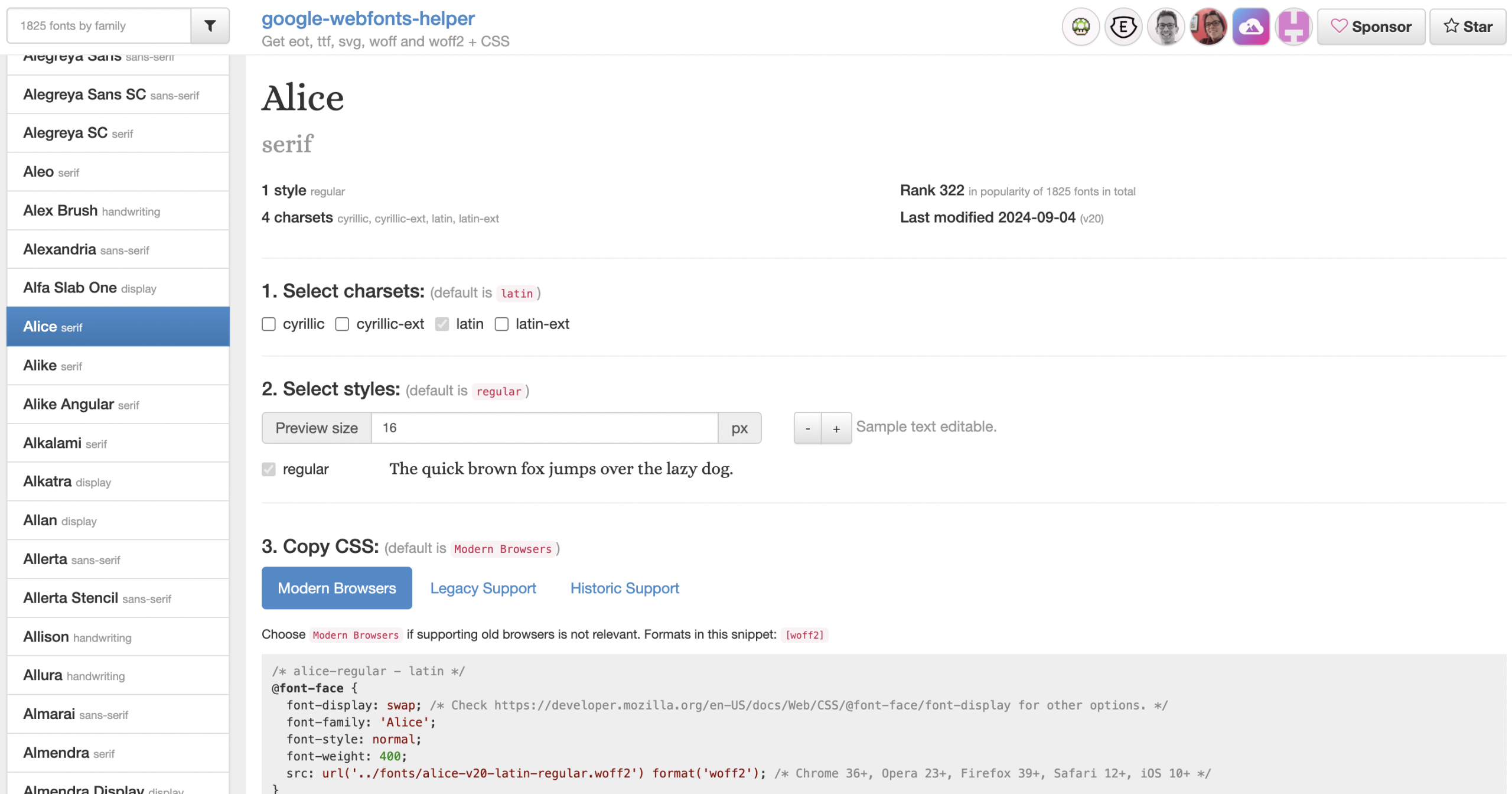
The final step is simple: download the provided ZIP file, extract the font files, and upload them to your web server. With these files in place and the CSS rules added to your stylesheet, you’re ready to enjoy the benefits of self-hosted fonts on your website.
The world of web fonts has evolved significantly, and WOFF2 (Web Open Font Format, version 2) stands out as today’s gold standard for font delivery.
What makes it special?
WOFF2 uses advanced Brotli compression technology, making it significantly more efficient than its predecessor. It achieves nearly 27% better compression compared to WOFF1, which relies on the older GZIP compression method.
You might encounter fonts in various formats like TTF, EOT, OTF, or WOFF1 when downloading from different sources. Even Google Fonts’ official website still provides fonts in TTF format by default.
However, you don’t need to juggle multiple font formats anymore. Since WOFF2 enjoys universal support across modern browsers, you can focus solely on this format for your web projects.
Converting your fonts to WOFF2 is straightforward. You can use online tools like CloudConvert’s WOFF2 Converter to transform your existing font files. Alternatively, if you’re working with Google Fonts, the Google Web Fonts Helper tool we mentioned earlier automatically provides fonts in WOFF2 format, saving you an extra step.
When you bring custom fonts into your website through self-hosting, the @font-face CSS rule becomes your essential tool for implementation. Think of it as your font’s ID card, as it tells browsers everything they need to know about your font, from where to find it to how to use it.
At its most basic level, @font-face needs two key pieces of information: what to call your font (using the font-family property) and where to find it (using the src property).
However, the real power of @font-face lies in its additional settings. These optional configurations give you precise control over how your font loads and behaves, helping you optimize for Core Web Vitals – Google’s important metrics for measuring user experience.
You can fine-tune aspects like which characters to include, how the font should load, and even adjust its visual characteristics. These settings aren’t just technical details; they directly impact how quickly and smoothly your website renders for visitors.
By carefully configuring these options, you can create a balance between beautiful typography and optimal performance.
Setting up custom fonts in your website requires proper @font-face declarations in your CSS. The basic @font-face setup is straightforward. Here’s the simplest way to define a custom font:
					@font-face {
  font-family: "Roboto";
  src: url("fonts/roboto-v30-latin-regular.woff2") format("woff2");
}
This basic declaration is perfect when you only need one style. However, modern websites often require multiple font variations. Here’s how to set up Roboto with different styles:
					@font-face {
  font-family: "Roboto";
  font-style: normal;
  font-weight: 400;
  src: url("/fonts/roboto-v30-latin-regular.woff2") format("woff2");
}


@font-face {
  font-family: "Roboto";
  font-style: normal;
  font-weight: 700;
  src: url("/fonts/roboto-v30-latin-bold.woff2") format("woff2");
}

@font-face {
  font-family: "Roboto";
  font-style: italic;
  font-weight: 400;
  src: url("/fonts/roboto-v30-latin-italic.woff2") format("woff2");
}
In this example, we’ve defined three variations of Roboto: regular (400), bold (700), and italic. Each declaration uses the same font-family name “Roboto”, but with different style and weight properties.
This setup allows you to use Roboto throughout your website with different styles while keeping everything organized under one font family name. When you apply styles like font-weight: bold or font-style: italic in your CSS, the browser will automatically select the correct font file.
Let’s clarify a common misconception about web fonts: simply declaring a font using @font-face doesn’t trigger its download.
Instead, fonts only download when they’re actually needed on your webpage. Here’s how it works in practice. When you define a font in your CSS like this:
					body {
  font-family: "Roboto", sans-serif;
}
The browser will only download the regular Roboto font file (roboto-v30-latin-regular.woff2) when it needs to render the body content. It won’t automatically download other variations of the font that you’ve defined with @font-face.
Similarly, if you specifically request the italic style:
					body {
  font-family: "Roboto", sans-serif;
  font-style: italic;
}
The browser will only fetch the italic version (roboto-v30-latin-italic.woff2), leaving the regular version untouched unless it’s needed elsewhere on the page. This behavior is actually quite smart as it helps save bandwidth by only downloading the font files that your webpage actually uses.
If you need both regular and italic styles on your page, you’ll need to use both variations in your CSS rules:
					body {
  font-family: "Roboto", sans-serif;
}
h1 {
  font-style: italic;
}
In this case, the browser will download both the regular and italic font files because they’re both being used, regular for the body text and italic for the headings.
The @font-face declaration comes with several powerful optional features that can significantly boost your website’s font performance. These features directly impact your site’s Core Web Vitals metrics, contributing to a better user experience.
The unicode-range descriptor is a powerful tool for font optimization that helps control which characters your website loads. This feature ensures that font files only download when specific characters are actually needed on your page.
Think of Unicode-range as a selective filter for your font loading. For example, if your website primarily uses English text, you can specify that only Latin characters should be downloaded, saving bandwidth by not loading characters for other languages or special symbols.
Here’s a practical example using the Noto Sans font:
					@font-face {
  font-family: "Noto Sans";
  font-style: normal;
  font-weight: 400;
  unicode-range: U+1F642; /* smiling emoji */
  src: url("/fonts/noto-sans-emoji.woff2") format("woff2");
}

body {
  font-family: "Noto Sans", sans-serif;
}
In this case, the Noto Sans font will only download if a smiling emoji appears in your content. Otherwise, the browser will use the fallback sans-serif font. This example is particularly effective because Noto Sans was specifically designed to handle diverse character sets, including emojis.
Font subsetting works in two ways. First, through the unicode-range descriptor in your CSS, which controls font downloading based on character usage. Second, through the actual font files themselves, you can create smaller font files that only contain specific character sets. Tools like Google Web Fonts Helper make this easy by letting you select exactly which character sets you need.
For even more precise optimization, you can create custom subsetted fonts that contain only the exact characters used on your website. This is particularly useful for display fonts used in specific elements like logos. Tools like subfont can help create these optimized font files.
Remember to check font licenses before subsetting. While most Google Fonts (using the SIL Open Font License) allow this optimization, not all fonts do.
The local() function is a smart feature of @font-face that can help improve your website’s performance by checking if the required font is already installed on the user’s device before downloading it from the web.
This function works as part of the src descriptor in your @font-face declaration.
Here’s how you can combine local() with url() to create an efficient font loading strategy using Noto Sans:
					@font-face {
  font-family: "Noto Sans";
  font-style: normal;
  font-weight: 400;
  src: local("Noto Sans Regular"),     /* Full name */
       local("NotoSans-Regular"),      /* PostScript name */
       url("/fonts/noto-sans-regular.woff2") format("woff2");
}
The order here is crucial as local() declarations should always come before the url() function. This sequence matters because if the browser finds the font locally, it won’t waste time and bandwidth downloading the online version.
For maximum compatibility, it’s recommended to include both the full name and PostScript name of the font.
PostScript names are used by Adobe programs that might have installed fonts on your user’s system. This dual-naming approach ensures the broadest possible coverage for local font detection.
If you’re unsure about a font’s local names, you can use font viewer tools like FontDrop! to inspect the font’s naming table and find the correct fullName and postScriptName values.

The font-display descriptor is a crucial tool for managing how text appears during font loading. It offers different strategies to handle the transition between fallback and custom fonts, each with its own trade-offs between performance and visual appearance.
When loading web fonts, you’ll encounter three potential display scenarios:
Here’s a practical example using Noto Sans:
@font-face {
  font-display: optional;
  font-family: "Noto Sans";
  font-style: normal;
  font-weight: 400;
  src: local("Noto Sans Regular"), local("NotoSans-Regular"),
    url("/fonts/noto-sans-regular.woff2") format("woff2");
}
The font-display descriptor offers several strategies:
For optimal Cumulative Layout Shift (CLS) scores, ‘optional’ or ‘fallback’ is recommended for main body text. These strategies help prevent jarring visual changes while maintaining good performance metrics.
The size-adjust descriptor is a newer but widely supported feature in @font-face declarations that helps prevent layout shifts during font loading. This feature is crucial because different fonts naturally have different sizes for their characters (glyphs), which can cause unwanted layout changes when switching between custom and fallback fonts.
Think of size-adjust as a scaling tool that helps match your custom font’s size with your fallback font. It uses a percentage value to either increase or decrease the size of font characters. For example:
					@font-face {
  font-display: fallback;
  font-family: "Noto Sans";
  font-style: normal;
  font-weight: 400;
  size-adjust: 105%;
  src: local("Noto Sans Regular"), local("NotoSans-Regular"),
    url("/fonts/noto-sans-regular.woff2") format("woff2");
}

body {
  font-family: "Noto Sans", Arial, sans-serif;
}
To find the right size-adjust value, you can either manually compare the sizes of your custom and fallback fonts or use helpful tools like the Fallback Font Generator. The goal is to make both fonts occupy the same space on the screen, preventing visual changes during font loading.
For even more precise control, modern browsers support additional size-tuning descriptors:
The ascent-override descriptor adjusts how far characters extend above their baseline. The descent-override descriptor controls how far characters extend below their baseline. The line-gap-override descriptor manages the spacing between lines of text.
While these additional descriptors can help create an even smoother font-switching experience, they’re not essential for basic layout shift optimization. Also, keep in mind that some browsers (like Safari) might not support these newer features yet.
For optimal font loading performance, it’s crucial to place your @font-face rules directly in the <head> section of your HTML page as part of your critical CSS. This inline approach ensures the fastest possible font loading times.
Here’s an example of how to implement this with Noto Sans, using minified CSS for better performance:
					<style>
  @font-face {
    font-display: optional;
    font-family: "Noto Sans";
    font-style: normal;
    font-weight: 400;
    size-adjust: 105%;
    src: local("Noto Sans Regular"), local("NotoSans-Regular"),
      url(/fonts/noto-sans-regular.woff2) format("woff2");
  }
  body {
    font-family: "Noto Sans", Arial, sans-serif;
  }
</style>
Two key principles are important to remember for this optimization technique. First, prioritize your font declarations by placing the most important ones first. For instance, if you have multiple font declarations, the font used in your body text should come before fonts used for headings or decorative elements.
Second, remember that the @font-face declaration alone doesn’t trigger a font download. The browser only starts downloading the font when it encounters a font-family rule that references it in your CSS.
That’s why it’s essential to include both the @font-face declaration and the corresponding font-family rule in your critical CSS.
While self-hosting fonts is generally the best approach for performance, sometimes you might need to use external font services like Google Fonts. Even in these cases, there are ways to optimize font loading for better performance.
Let’s focus on Google Fonts optimization. By default, when you use Google Fonts, it provides a code snippet that establishes connections to their servers and loads your chosen fonts.
This default setup includes preconnect links to Google’s servers and a stylesheet link that loads both the fonts and their associated CSS rules.
The default approach can be quite heavy in terms of resources. For example, when loading a single font family with normal and italic styles, Google Fonts typically downloads separate font files for each style and includes multiple @font-face rules for different character sets (like Cyrillic, Greek, and Latin). This means your website might be downloading more font data than it actually needs.
For instance, if you’re only using Latin characters on your English-language website, you’re still downloading support for Cyrillic, Greek, and other character sets by default.
When using Google Fonts, while you can’t completely eliminate unused character sets from the @font-face rules, there are still effective ways to optimize font loading.
Modern browsers handle font optimization intelligently through the unicode-range descriptor. When you load fonts from Google’s CDN, browsers automatically detect which character sets your page needs and only download those specific subsets. For example, if your page doesn’t use Greek or Cyrillic characters, those glyphs won’t be included in the download.
Google Fonts offers two important URL parameters for performance optimization:
The ‘display’ parameter works similarly to the font-display descriptor we discussed earlier. While Google Fonts defaults to ‘swap’, you can change this to ‘fallback’ or ‘optional’ to improve your Cumulative Layout Shift metrics.
The ‘text’ parameter provides precise control over font subsetting. It allows you to include only specific characters in your font download. This is particularly useful for situations like logos or headers, where you know exactly which characters you’ll use.
Here’s how to implement these optimizations with Noto Sans:
<link rel="stylesheet" href="https://abysalto.eu/wp-content/cache/fonts/1/google-fonts/css/b/b/b/3fd97f5ac83a5fc7be3374074ebe7.css" data-wpr-hosted-gf-parameters="family=Noto+Sans:ital@0;1&text=Abysalto&display=fallback"/>
This approach ensures you’re only downloading the font data you actually need. In the example above, it’s the text “Abysalto”.
When using Google Fonts, preconnect links play a crucial role in optimizing font loading speed. These special link elements help establish early connections to Google’s servers, reducing the time needed to fetch your fonts.
Here’s how the preconnect setup works with Noto Sans:
These preconnect links serve different but complementary purposes. The first link establishes a connection to fonts.googleapis.com, where the CSS file containing your font definitions is stored. The second link connects to fonts.gstatic.com, which hosts the actual font files.
Preconnect is a resource hint that tells browsers to establish these connections early in the page loading process. Think of it as opening a direct line of communication before you actually need to transfer data. This preparation helps reduce the time needed to download fonts when they’re required.
The second preconnect link includes a special crossorigin attribute because font files must be downloaded using CORS (Cross-Origin Resource Sharing) protocols. This security measure ensures fonts are loaded safely from external domains.
Preloading fonts is an advanced optimization technique that can speed up font rendering, but it needs to be used thoughtfully. While preloading can be beneficial, it’s important to understand both its advantages and potential drawbacks.
Here’s how preloading works with Noto Sans:
					<link
  rel="preload"
  href="https://fonts.gstatic.com/s/notosans/v30/regular.woff2"
  as="font"
  type="font/woff2"
  crossorigin
/>
While it might be tempting to preload many font files, doing so can actually harm performance by competing with other important resources for bandwidth.
The general recommendation is to be selective with preloading. Consider preloading only the most critical font files – typically the regular style used for body text or perhaps a bold variant for headings. When you preload too many fonts, you’re essentially telling the browser to prioritize fonts over other potentially crucial resources like CSS or JavaScript files.
Based on practical experience, preloading one or two essential font files can positively impact page load times. The key is finding the right balance between faster font rendering and efficient overall resource loading.
While optimizing your fonts is crucial for website performance, it’s just one piece of the puzzle. To achieve truly fast-loading fonts, you’ll need to implement several complementary performance strategies.
Code splitting and CSS optimization play a significant role in font performance. By removing unused CSS and splitting your stylesheets strategically, you can reduce unnecessary font downloads. Remember, browsers only download fonts that are referenced in your CSS, so cleaner CSS means more efficient font loading.
Network protocols also matter significantly. Supporting modern protocols like HTTP/3 can substantially improve font download speeds. This newer protocol handles multiple requests more efficiently, leading to faster overall page loads.
Content Delivery Networks (CDNs) are another powerful tool for font optimization. By distributing your font files across multiple servers worldwide, CDNs ensure that users download fonts from the closest possible location, reducing latency and improving load times.
Proper caching implementation is essential for returning visitors. While most web hosts and CDNs handle caching automatically, you might need to set up long-expiration caching headers for your font files manually in some cases.
Finally, regular performance monitoring is crucial. Using web performance analysis tools helps you identify and address specific font-related performance issues before they impact your users. These tools can track metrics like font load times, layout shifts, and overall page performance, helping you maintain optimal font delivery.
By combining these strategies with your font optimization efforts, you can create an optimal user experience.
by Mensur Duraković